Why Assigned can be negative (and why Available is the number to watch)
Follow $50 from last month to see why Assigned can go negative, what Available tells you, and how to put money back with Add / Remove on the web.
The jar and the diary
Each category is a jar. Available is what is in the jar right now. Activity is spending and income posted this month. Assigned is this month’s budgeting decisions, added up: money put in minus money moved out, like a diary with a running total of decisions, not a balance.
Follow the $50
Suppose your Vacation Fund carried over $50 from last month, and you haven’t assigned anything this month. With no activity, Available is $50. Move that $50 to Groceries, then add $50 back from Ready to Assign. Here is the Vacation Fund at each step:
| Step | Carried over | Assigned | Activity | Available |
|---|---|---|---|---|
| Start | $50 | $0 | $0 | $50 |
| Move $50 out | $50 | −$50 | $0 | $0 |
| Add $50 back | $50 | $0 | $0 | $50 |
Available = carried over from last month + Assigned + Activity.
Carried over is last month’s closing Available; moving money this month cannot change that closing amount. The move is a budgeting decision, so Assigned records −$50 and Available drops by $50. There is no spending transaction to record in Activity.
So is my budget broken?
No. Negative Assigned means you moved more out than you put in this month. Watch Available to know what is left to spend in that category: $0 means the jar is empty; $50 means it holds $50. Negative Available needs attention because the category has a shortfall. Negative Assigned alone does not mean you overspent or lost money.
How to put money back
On the web, a negative Assigned cell is now a clickable chip instead of a number you type over. Hover over -$50.00 to see “$50.00 more out than in this month.”
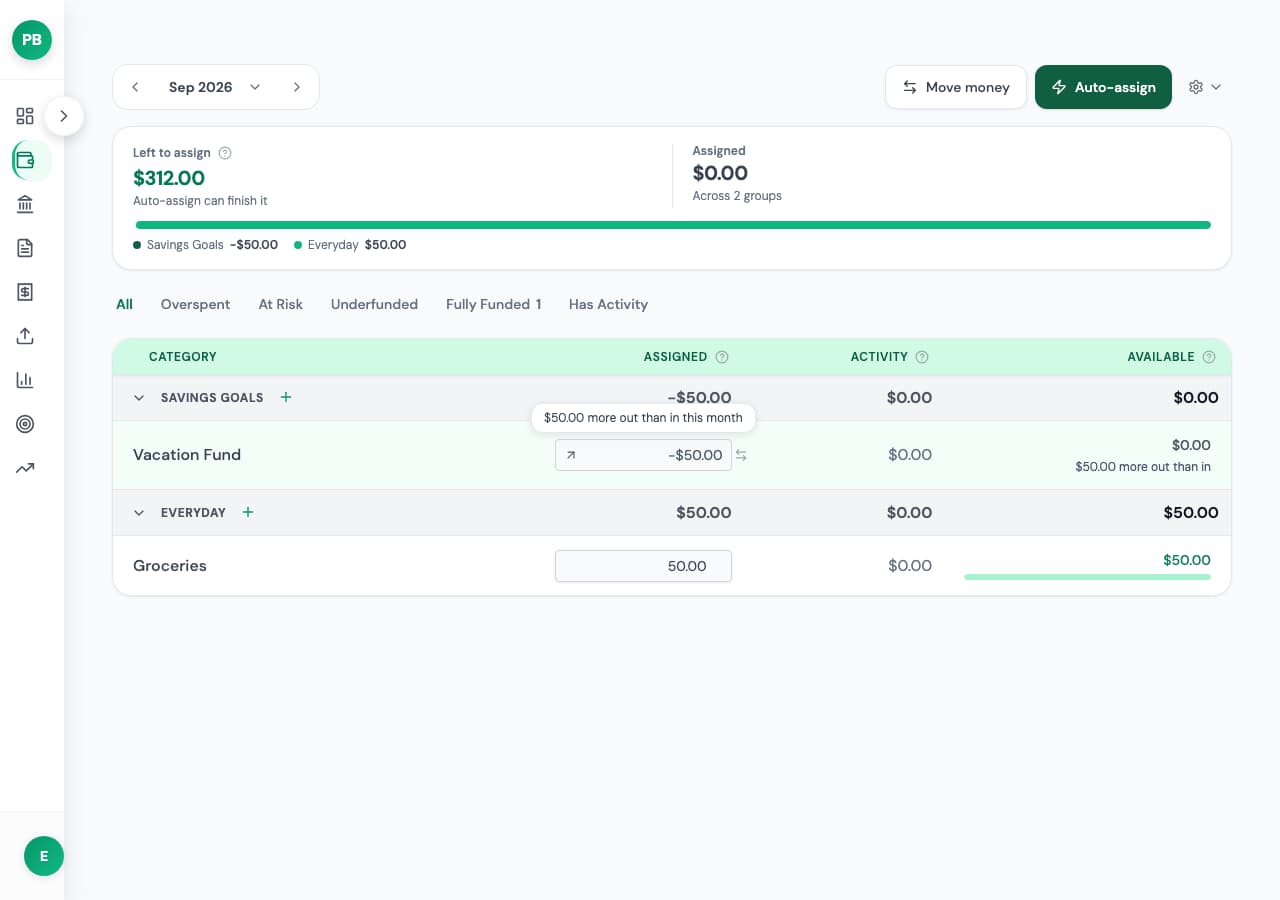
Click the chip to open Add / Remove. Add is already selected; enter 50. In this demo, Ready to Assign has $312.00, and the live preview reads:
Available $0.00 → $50.00 · Ready to Assign $312.00 → $262.00
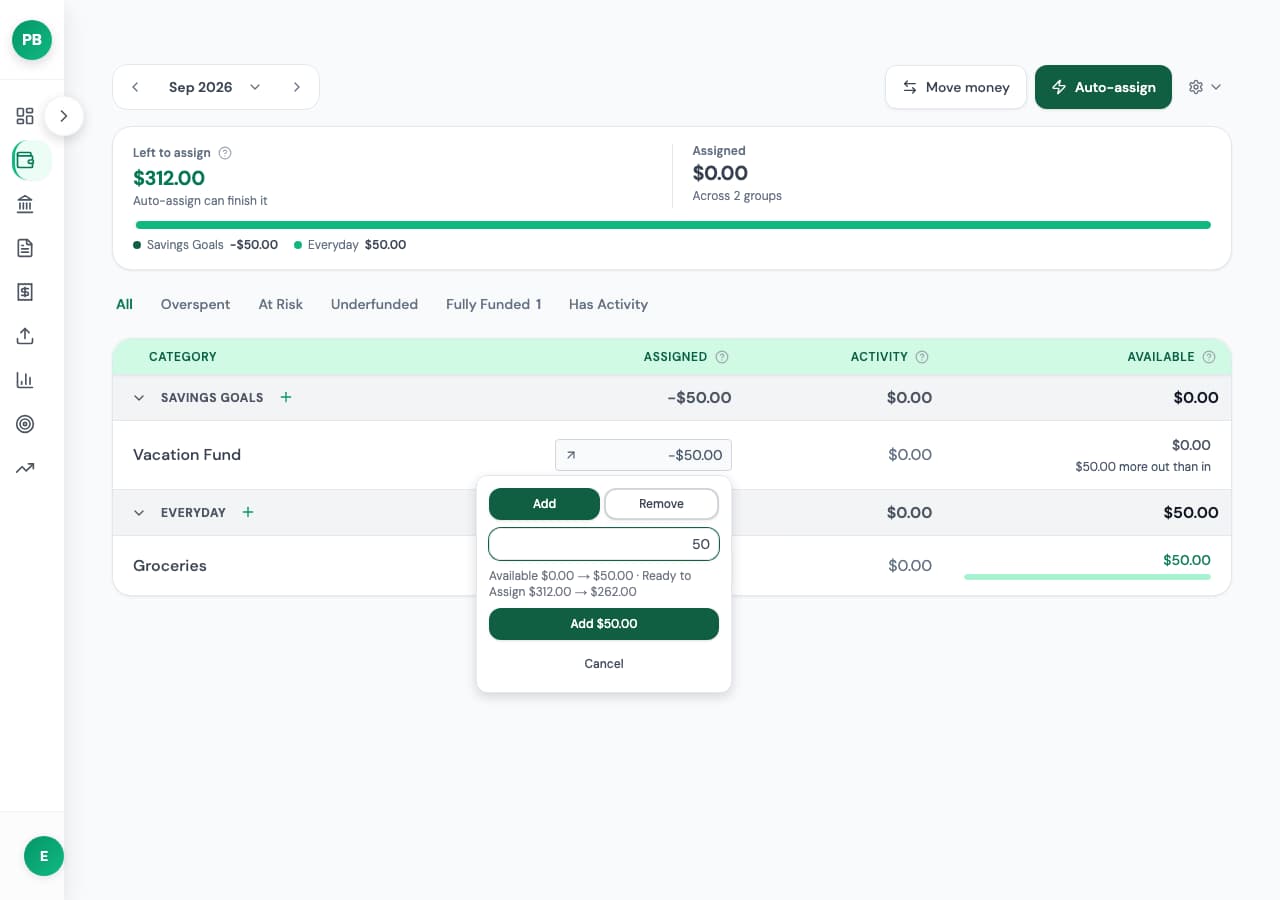
Click Add $50.00; the cell shows 0.00 and Available becomes $50.00. Add fifty means add fifty. Groceries keeps the $50 you moved there; this addition comes from Ready to Assign.
Non-negative cells still work like a spreadsheet: typing replaces the Assigned total. Their calculator icon opens the same Add / Remove editor. Remove asks once for confirmation if it would take Available from zero or above to below zero. Move Money refuses to move more out of a category than it has Available.
A group header adds up its rows’ Assigned totals. A negative total has the same explanation on hover on desktop, or inline in the mobile web view.
Why YNAB shows the same thing
YNAB also records more money moved out than assigned this month as negative Assigned, because its envelope budgets track those same decisions. Its guide to negative Assigned amounts points you to Available when deciding what you can spend.
Related: Mastering Money Movement.